Advanced Analysis: create account
A missing account might occur when invoices are loaded and an account is listed on the invoice but does not exist in Cimpl. To correct this error, you must create an account.
- Go to Billings Center > Discrepancy Tracker and select the Advanced Analysis tab.
-
Select a Provider. The Advanced Analysis grid opens.
Note: Providers must have their Advanced Analysis permission configured by Cimpl. To set up this permission contact cimpl-support@uplandsoftware.com. Without this permission configured, Advance Analysis is unavailable.
- In the Filter section, select the Advance Analysis Status filter. The filter appears under Selected Filters.
- Select the IS operator.
-
Select Missing Account .
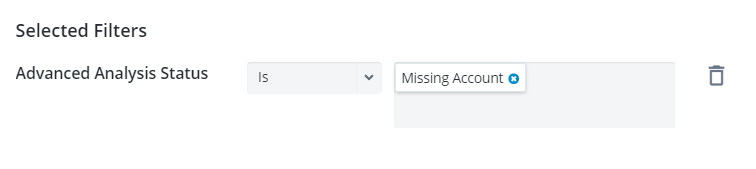
- Click Apply. Only errors that have the status of Missing Account now appear in the grid.
- Click More Options
 beside the error entry you want to update.
 - Select Create Account. The Create Account form opens.
- Enter an Account Name.
- Select Account Payment Type.
- Select Account Type.
- Click + Add Cost Center. A pop-up opens.
- Select a Cost Center. The Cost Centeris added the Create Account form.
- Enter Comments (required).
- Click Apply. A confirmation message appears. The Account is created and the error is corrected.
- Go to Payment Readiness.
Note: Only accounts which have no errors in Advanced Analysis will be able to be processed through Payment Readiness. Accounts with remaining errors will be ineligible for payment.